

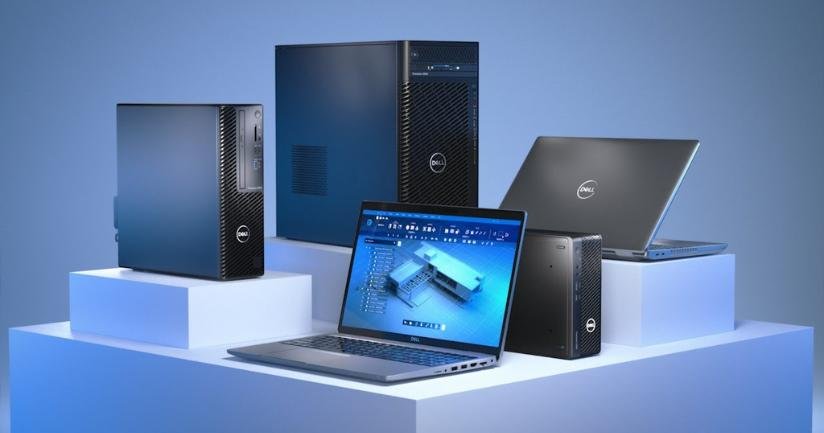



Whether you’re a gamer chasing smooth frame rates or a video editor working on 4K footage, laptop performance plays a critical role in how efficiently you work or play. Many users invest in high-end laptops with powerful processors and GPUs but fail to configure their systems for maximum efficiency.
Your laptop may have the specs, but if your system settings aren’t optimized, you’re not getting the best out of your machine. In this detailed guide, we’ll walk through practical ways to fine-tune your Windows or macOS laptop for faster gaming, smoother editing, and longer-lasting performance.
Before you tweak anything else, start with updates. Outdated drivers can cause lags, crashes, and poor performance in both gaming and editing applications.
Go to Device Manager → Display Adapters → Update Driver to ensure your GPU drivers are up to date.
Visit official GPU sites like NVIDIA GeForce Experience or AMD Adrenalin Software to download the latest performance updates.
macOS automatically handles driver updates through system upgrades. To check:
Go to System Settings → General → Software Update and install pending updates.
Keeping your drivers updated ensures optimal performance, compatibility with new software, and fewer system glitches.
Laptop performance often drops because of energy-saving settings designed to extend battery life. But when gaming or editing, you need maximum power delivery.
Open Control Panel → Power Options.
Select High Performance or Ultimate Performance (available on some systems).
Go to Settings → System → Power & Battery → Power Mode, and choose Best Performance.
Open System Settings → Battery → Power Adapter.
Choose Better Performance instead of Better Battery.
This ensures your CPU and GPU operate at full potential instead of throttling to save energy.
Your graphics card is the heart of gaming and editing performance. Configuring its settings correctly can significantly improve FPS (frames per second) and rendering speed.
Open NVIDIA Control Panel → Manage 3D Settings.
Set Power Management Mode to Prefer Maximum Performance.
Adjust Texture Filtering Quality to High Performance.
Enable G-Sync or V-Sync depending on your display support to prevent screen tearing.
Open AMD Radeon Settings → Performance → Tuning.
Enable Radeon Chill to balance frame rates and power usage.
Turn on Radeon Image Sharpening for better clarity during editing or gaming.
These adjustments ensure smooth graphics performance without unnecessary power throttling.
Every extra program running in the background consumes CPU and memory resources. When gaming or editing, you need all that processing power free.
Press Ctrl + Shift + Esc → open Task Manager → Startup Tab.
Disable unnecessary apps like chat clients or update services.
Go to System Settings → General → Login Items.
Remove apps that don’t need to launch automatically.
Once cleaned, you’ll notice faster boot times and smoother performance during heavy workloads.
Temporary files, cache, and leftover data from software updates can clog your system over time.
Use Disk Cleanup or Storage Sense to automatically remove unnecessary files.
Go to Settings → System → Storage → Temporary Files.
Delete cache, temp data, and Recycle Bin contents safely.
Open About This Mac → Storage → Manage, then review recommendations to clear cache, old documents, and unused files.
Keeping your system clean improves responsiveness and reduces lag in resource-heavy applications like Adobe Premiere Pro or Unreal Engine.
Virtual memory acts as backup RAM when your system runs out of physical memory. Setting it manually can improve stability during heavy tasks.
Go to Control Panel → System → Advanced System Settings → Performance Settings → Advanced → Virtual Memory.
Uncheck “Automatically manage paging file size.”
Set Initial size = 1.5 × RAM and Maximum size = 3 × RAM.
This gives Windows extra flexibility to handle demanding tasks without crashing.
Fancy animations and shadows look great but consume GPU resources. Turning them off can make your laptop feel snappier.
Go to System → Advanced System Settings → Performance Settings.
Choose Adjust for best performance or manually disable animations and transparency effects.
Go to System Settings → Accessibility → Display.
Turn on Reduce Transparency and Reduce Motion.
You’ll instantly notice faster response times, especially in editing software like Final Cut Pro or Photoshop.
If your laptop runs on an SSD, performance can degrade as the drive fills up. Keep at least 20% of your SSD free to maintain write speeds.
Run Defragment and Optimize Drives → select your SSD → click Optimize.
Ensure TRIM is enabled (it usually is by default).
macOS automatically manages TRIM for SSDs, but you can periodically clear system junk to maintain efficiency.
Free space means faster read/write speeds and smoother application loading.
Lower shadow quality and texture filtering slightly to balance visuals and frame rates.
Use Full-Screen Mode instead of borderless windowed for better GPU utilization.
Disable background recording features like Xbox Game Bar if not needed.
In software like Adobe Premiere Pro or DaVinci Resolve, allocate maximum RAM under Preferences → Memory.
Set cache location to SSD instead of HDD for faster playback and rendering.
Use Proxies when editing 4K or 8K videos to reduce real-time lag.
Customizing settings inside the app ensures smoother workflow and quicker response time.
Heat throttling is a silent performance killer. When temperatures rise, your CPU and GPU automatically slow down to prevent damage.
Clean air vents and fans every few months.
Use a cooling pad to improve airflow.
Ensure your laptop sits on a hard surface, not a bed or couch.
You can also monitor temps using tools like MSI Afterburner (Windows) or iStat Menus (macOS) to ensure your system stays below 85°C during heavy use.
If your laptop supports RAM upgrades, increasing memory can be a game changer for gaming and editing workloads.
For those unable to upgrade hardware, consider:
Closing all unnecessary background apps (browsers, chat apps, updaters).
Using lightweight software alternatives for multitasking.
The more memory you free up, the smoother your games and editing applications will run.
For creative professionals, display calibration is as crucial as performance. Ensure your laptop’s screen and GPU deliver accurate colors.
Windows: Use Display Color Calibration Tool or monitor-specific calibration software.
macOS: Go to System Settings → Displays → Color → Calibrate.
A properly calibrated screen ensures you edit videos, photos, and graphics with true-to-life color accuracy.
When using heavy software, connecting peripherals can offload some tasks:
External SSDs for scratch disks (video editing).
eGPUs (external graphics units) for gaming laptops with Thunderbolt ports.
External cooling solutions for better heat management.
Smartly using external devices can extend your laptop’s performance life.
Over time, cluttered software installations slow down even the fastest systems.
Uninstall old games, plugins, and demo software you no longer use.
Avoid multiple antivirus tools; one is enough.
Disable unnecessary Windows services or startup daemons in macOS.
A cleaner OS always performs better.
You don’t need expensive upgrades to make your laptop perform like a beast. A few thoughtful adjustments in power management, GPU configuration, cooling, and system settings can deliver noticeable speed improvements in gaming and editing.
Regular maintenance—cleaning cache, updating drivers, and monitoring heat—keeps your laptop fast, reliable, and efficient for years.
So whether you’re a gamer seeking higher FPS or an editor rendering large projects, optimizing your settings can help you achieve professional-level performance without spending more on new hardware.